You haven't signed in yet, you can have a better experience after signing in
*Please complete the payment within {{receiveCouponInfo.expire_at}}Previous use*
You haven't signed in yet, you can have a better experience after signing in



Activity Rules
1、Activity time:{{ info.groupon.start_at }} ~ {{ info.groupon.end_at }}。
1、Activity time:cease when sold out。
2、Validity period of the Group Buying:{{ info.groupon.expire_days * 24 }} hours。
3、Number of Group Buying:{{ info.groupon.need_count }}x。
Please Pay Attention
1、Teamwork process: Join/initiate a Group Buying and make a successful payment - Within the validity period, the number of team members meets the activity requirements - Group Buying succeeded!
2、If the number of participants cannot be met within the valid period, the group will fail, and the paid amount will be refunded in the original way.
3、The number of people required and the time of the event may vary among different products. Please pay attention to the rules of the event.
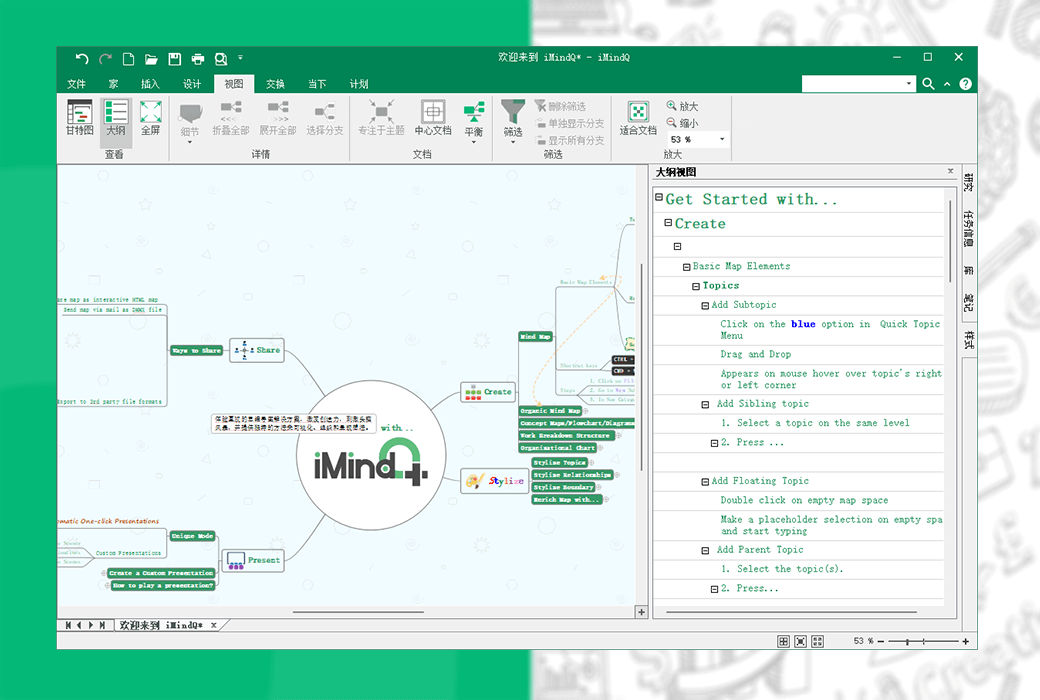
iMindQ Professional Mind Mapping Software
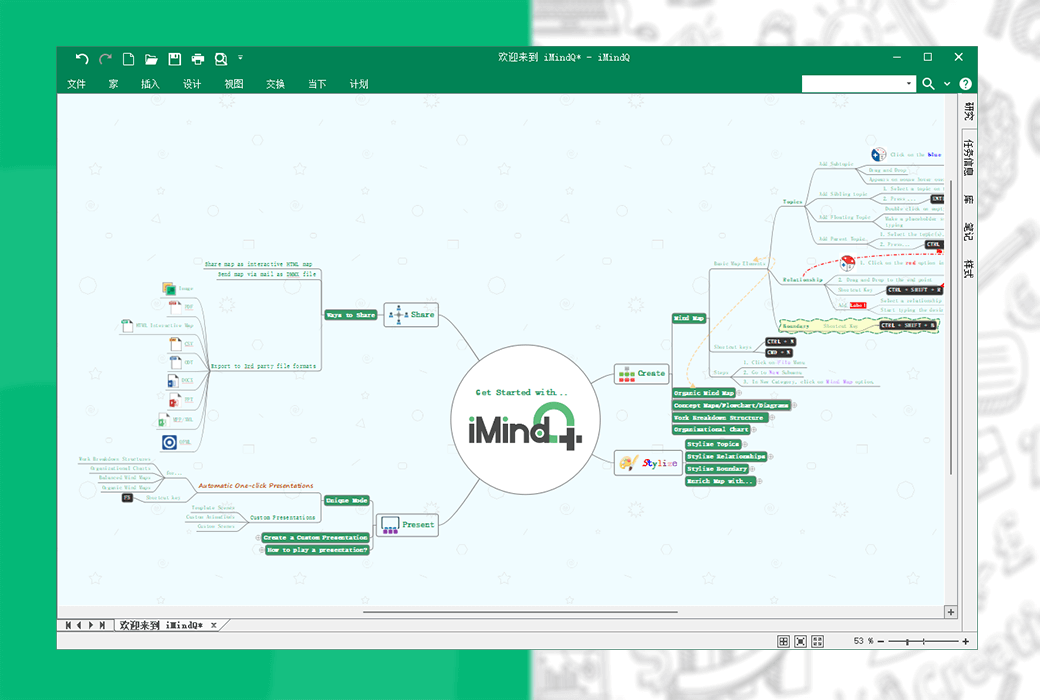
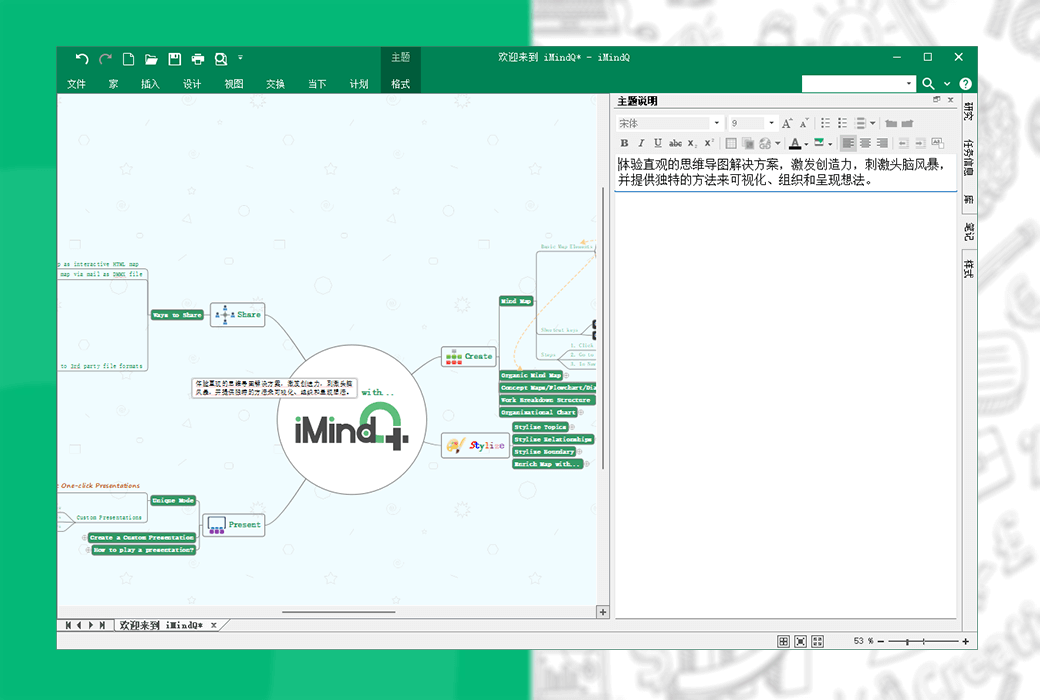
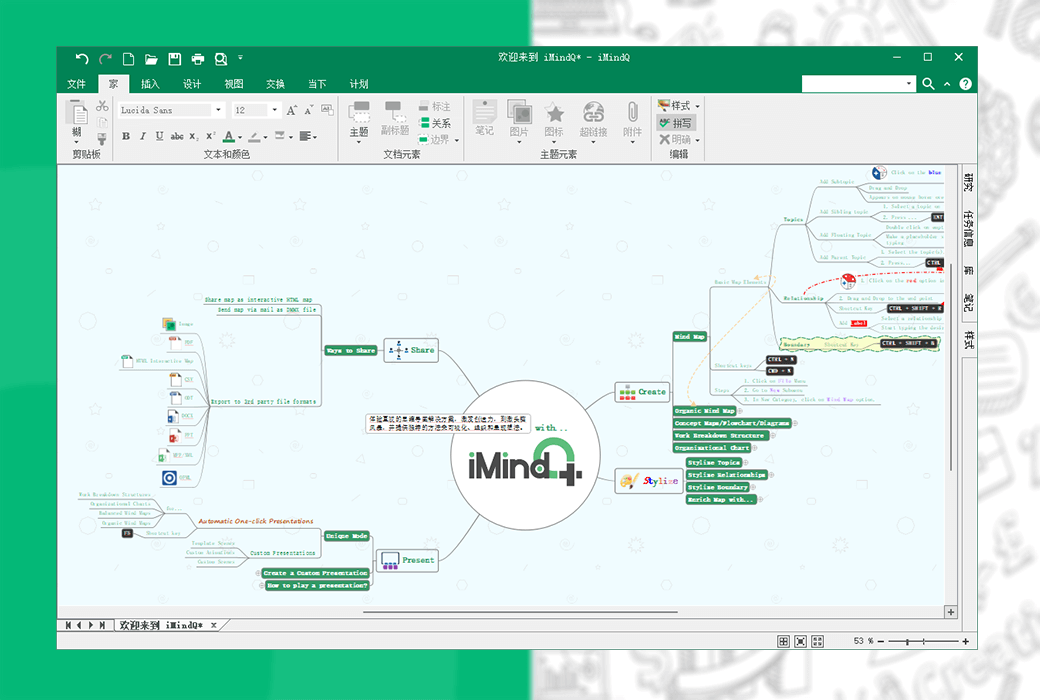
Experience an intuitive mind mapping solution that stimulates creativity, facilitates brainstorming, and provides a unique way to visualize, organize, and present ideas.
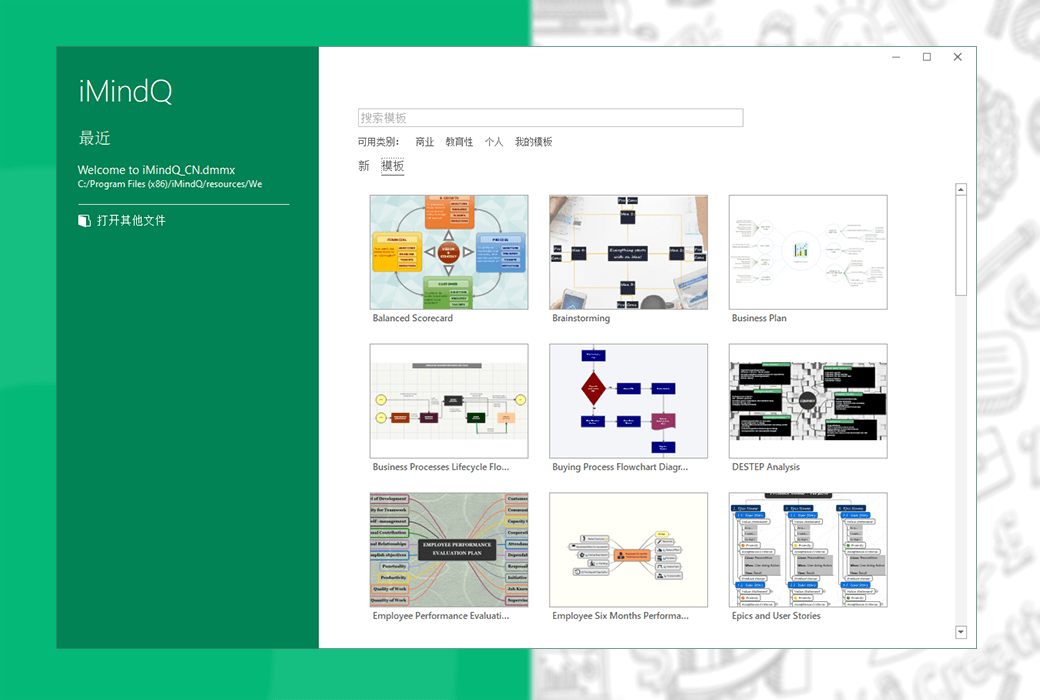
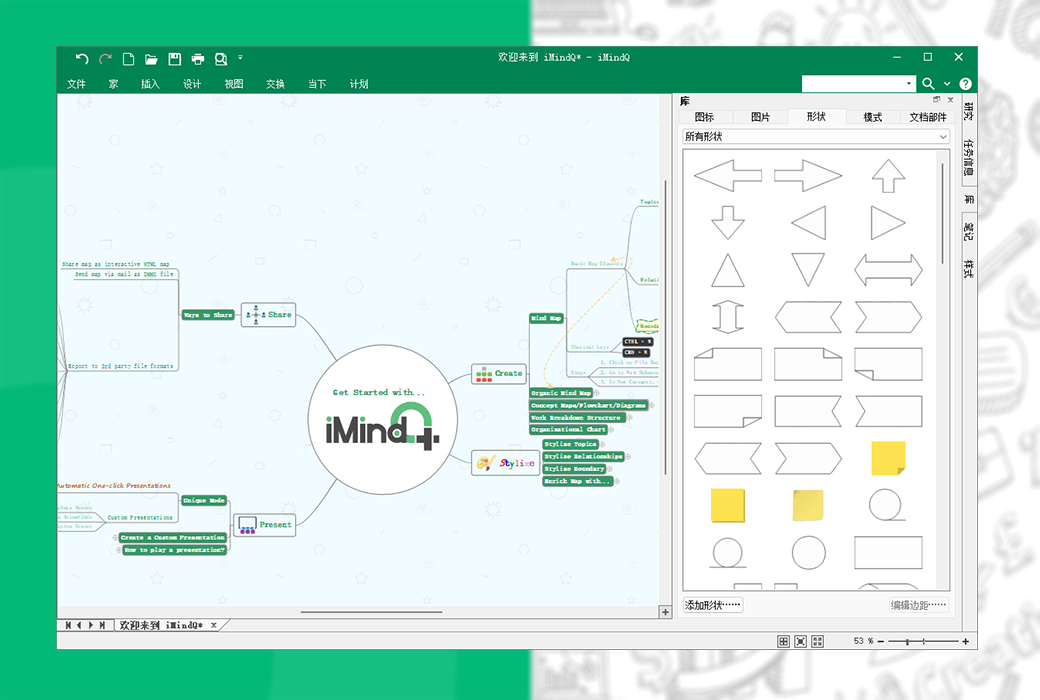
Positioned as professional mind mapping software, iMindQ is an excellent tool that combines various types of mind mapping styles, suitable for business, education, and personal use, and can be employed by any department within an organization, school system, or university. Furthermore, iMindQ can assist individuals in stimulating learning, organizing, and visually presenting ideas.
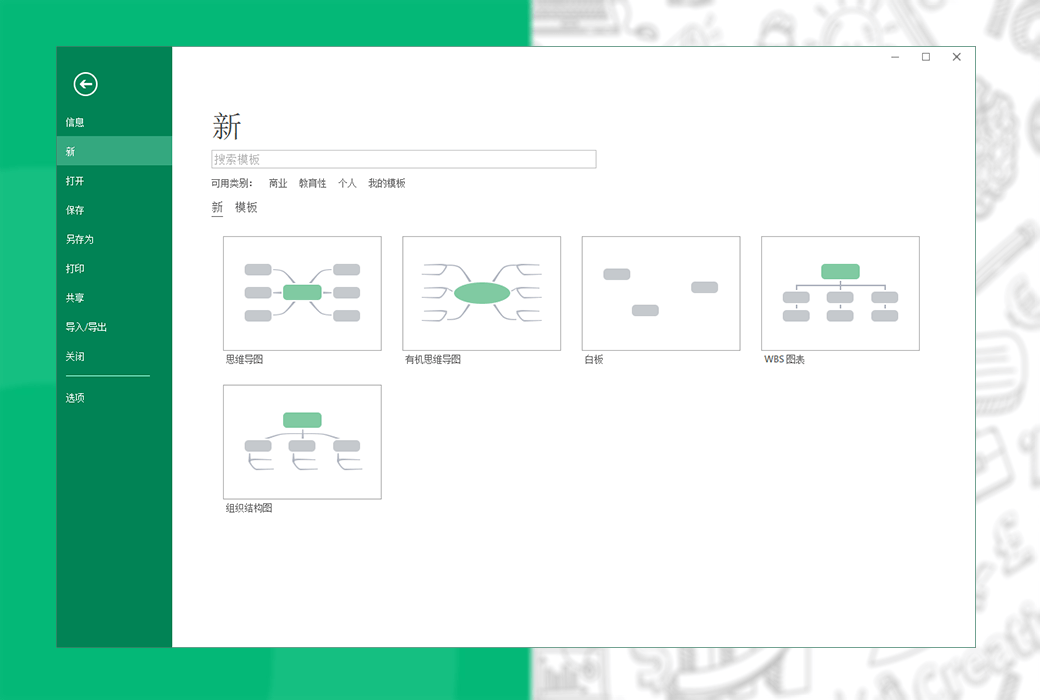
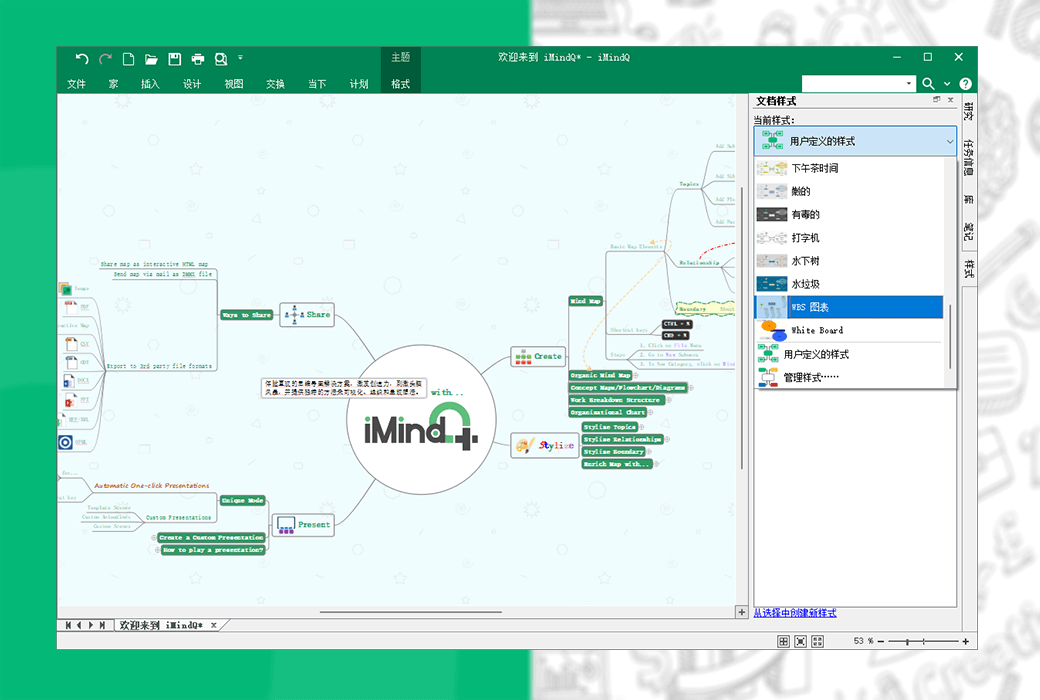
Mind maps, concept maps, flowcharts, Gantt charts, organization charts, WBS diagrams, and other types of diagrams are increasingly being used to present key information in a format that is relatively easy to remember and understand. These diagrams are best created using iMindQ. It serves as an excellent tool when generating new ideas or attempting to maximize the use of a large amount of workload or information overload.
How Can iMindQ Assist You?
Concept maps are visual representations that connect themes and ideas around a central concept.
Conducting brainstorming sessions through mind mapping ensures understanding, retention, and increased participation among team members.
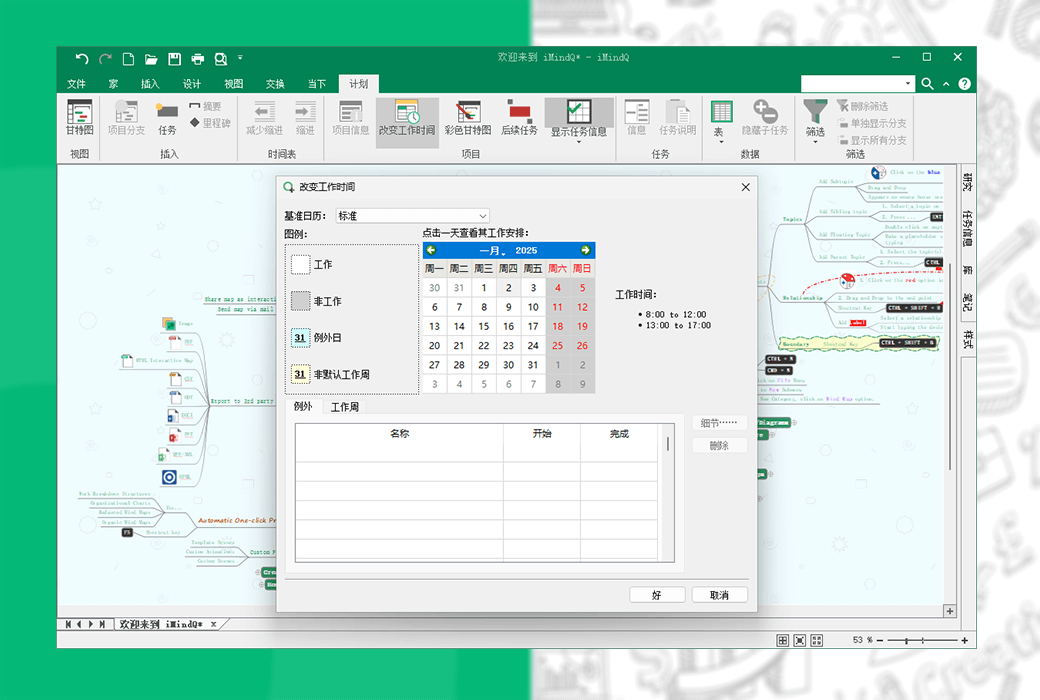
Plan projects by creating a WBS based on deliverables and visually analyze the results using a Gantt chart view.
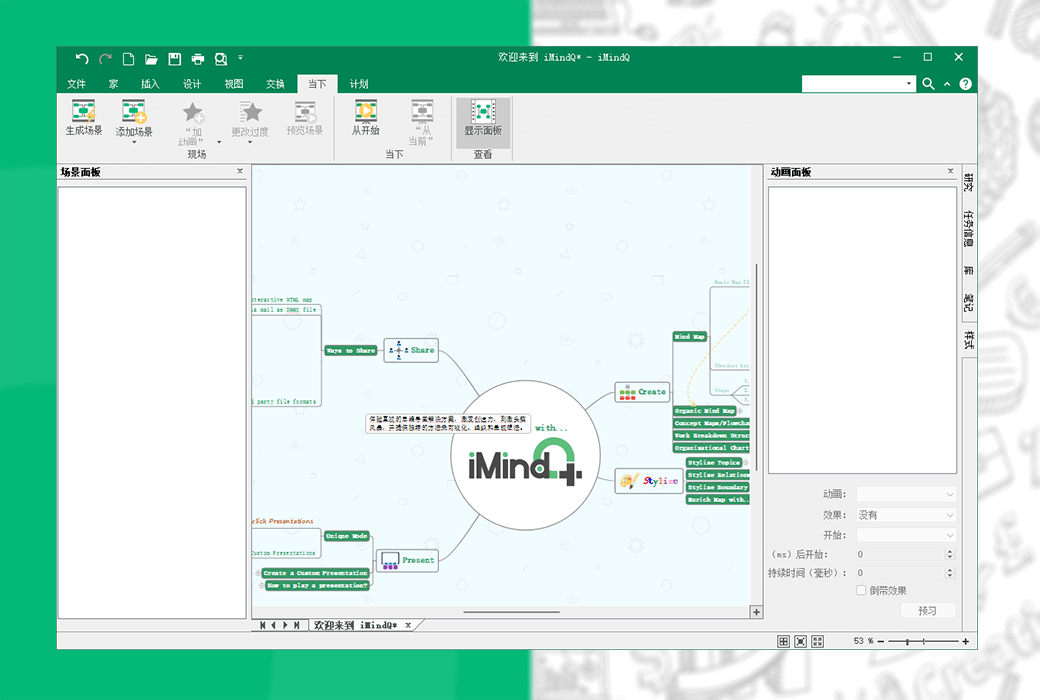
Present your mind maps with just one click, leaving a powerful visual impact and providing an overview of the entire topic.
Official website:https://www.imindq.com/
Download Center:https://imindq.apsgo.cn
Backup Download:N/A
Delivery time:Manual processing
Operating Platform:Windows
Interface language:Supports Simplified Chinese interface display and supports selection of other languages.
Update Description:Supports one-year maintenance and updates, and can continue to use the current version after one year.
Trial before purchase:Free 15 day trial before purchase.
How to receive goods:After purchase, the activation information will be sent to the email address at the time of placing the order, and the corresponding product activation code can be viewed in the personal center, My Orders.
Number of devices:Can install one computer.
Replace computer:Uninstall the original computer and activate the new computer.
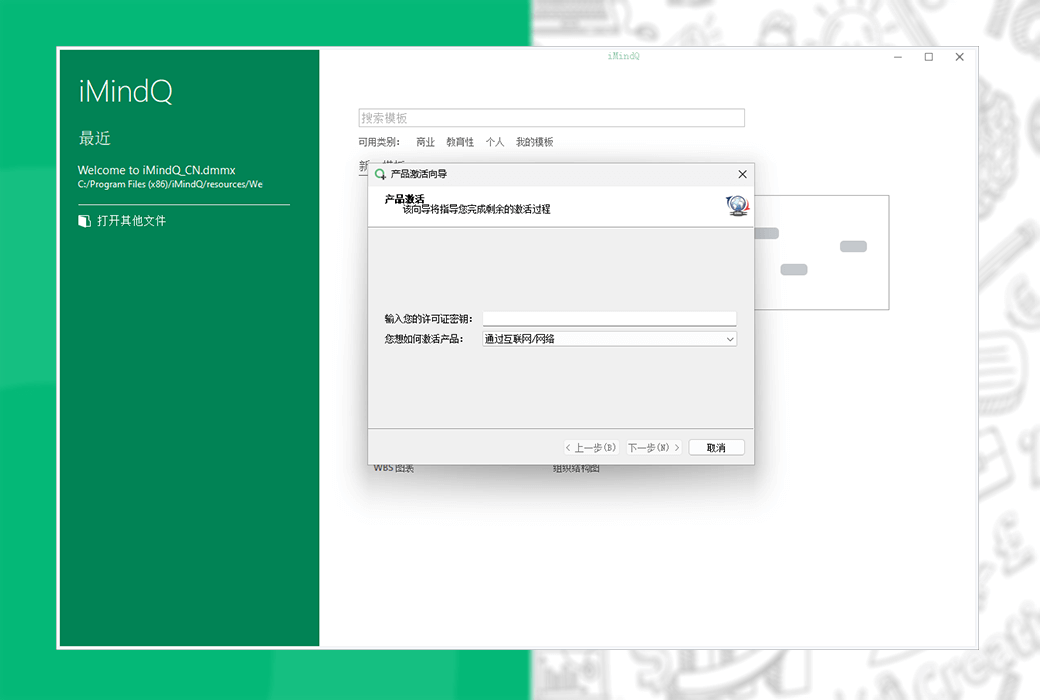
Activation guidance:To be added.
Special note:To be added.
reference material:https://synamistore.com/collections/imindq

Any question

By integrating iMindQ with MS Outlook, organizing your tasks and appointments has never been easier. To add tasks or appointments to your MS Outlook account, you need to perform the following actions:
This will open the Create Outlook Task/Outlook Appointment according to the previous steps. Tasks or appointments inserted in iMindQ will display a small icon on the left side of the theme, indicating that it is connected to Outlook. Every change made to a task or appointment throughout Outlook will also be automatically synchronized in iMindQ.
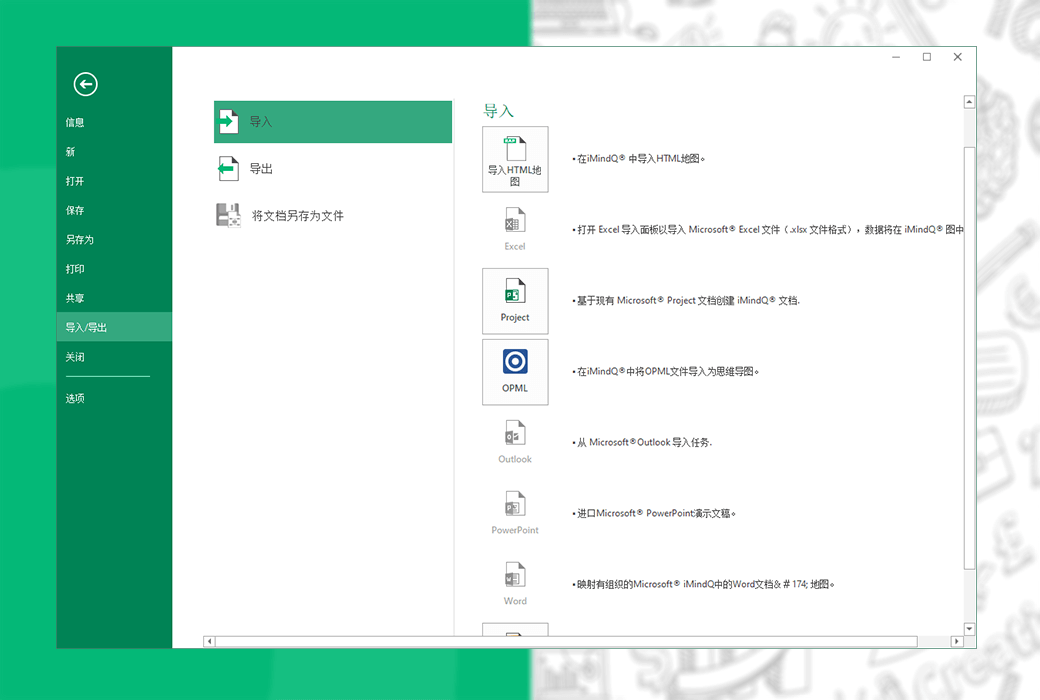
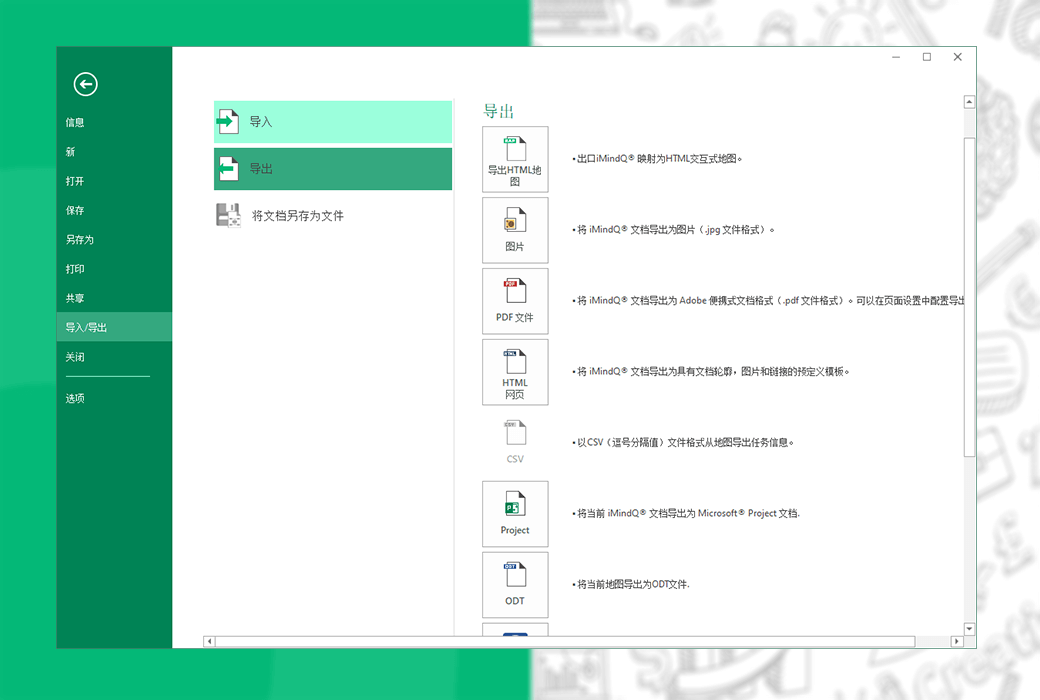
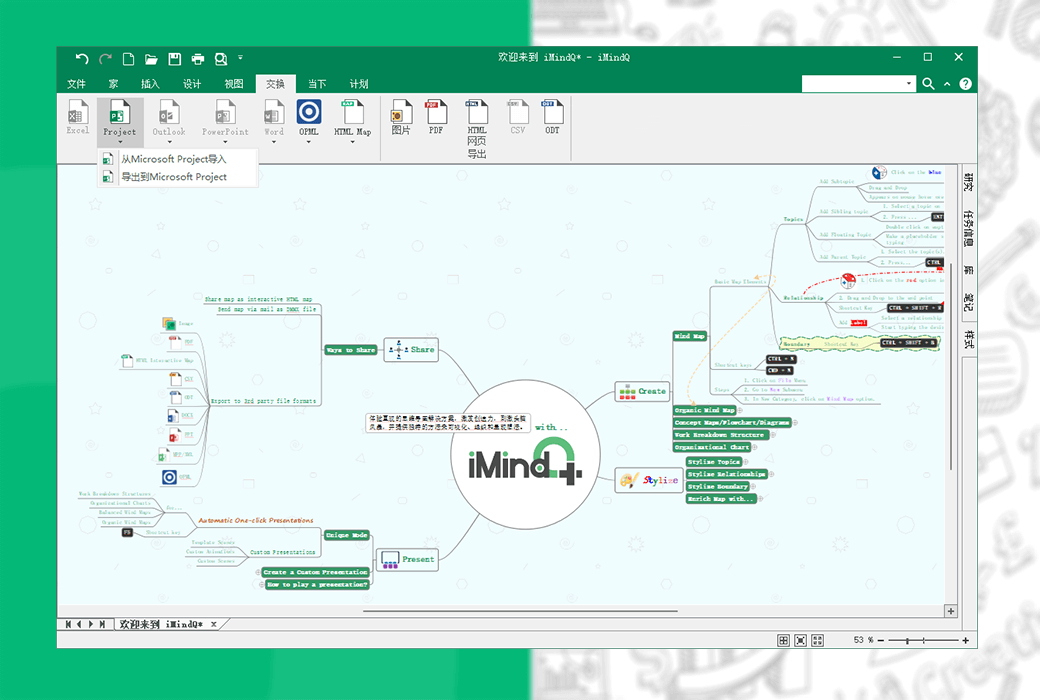
Another powerful feature that makes organizing activities with tasks and appointments easier is the import and export function. To export tasks from iMindQ to Outlook, select the tasks you want to add, click on the Exchange ribbon, and then select Outlook from the collaboration group. Click on the Export to Outlook feature, and your task will be added to your Outlook to-do list.
Just like exporting tasks created in iMindQ to Outlook, you can import tasks from Outlook to iMindQ. Select the theme to add tasks to. Select the Outlook button from the Exchange ribbon. From here, you need to select the import function from Outlook. This operation will open Import from MS Outlook, where you can select the tasks that should be imported. If you choose to change the parameters of tasks from Outlook, these changes will be automatically applied to tasks in iMindQ.